Xbox games can be played directly on a compatible smart TV through cloud streaming, without a physical console. Microsoft’s Xbox Cloud Gaming handles game processing on remote servers and streams video and controls to the TV, letting users start playing as long as their TV supports the necessary app and they have a suitable internet connection.
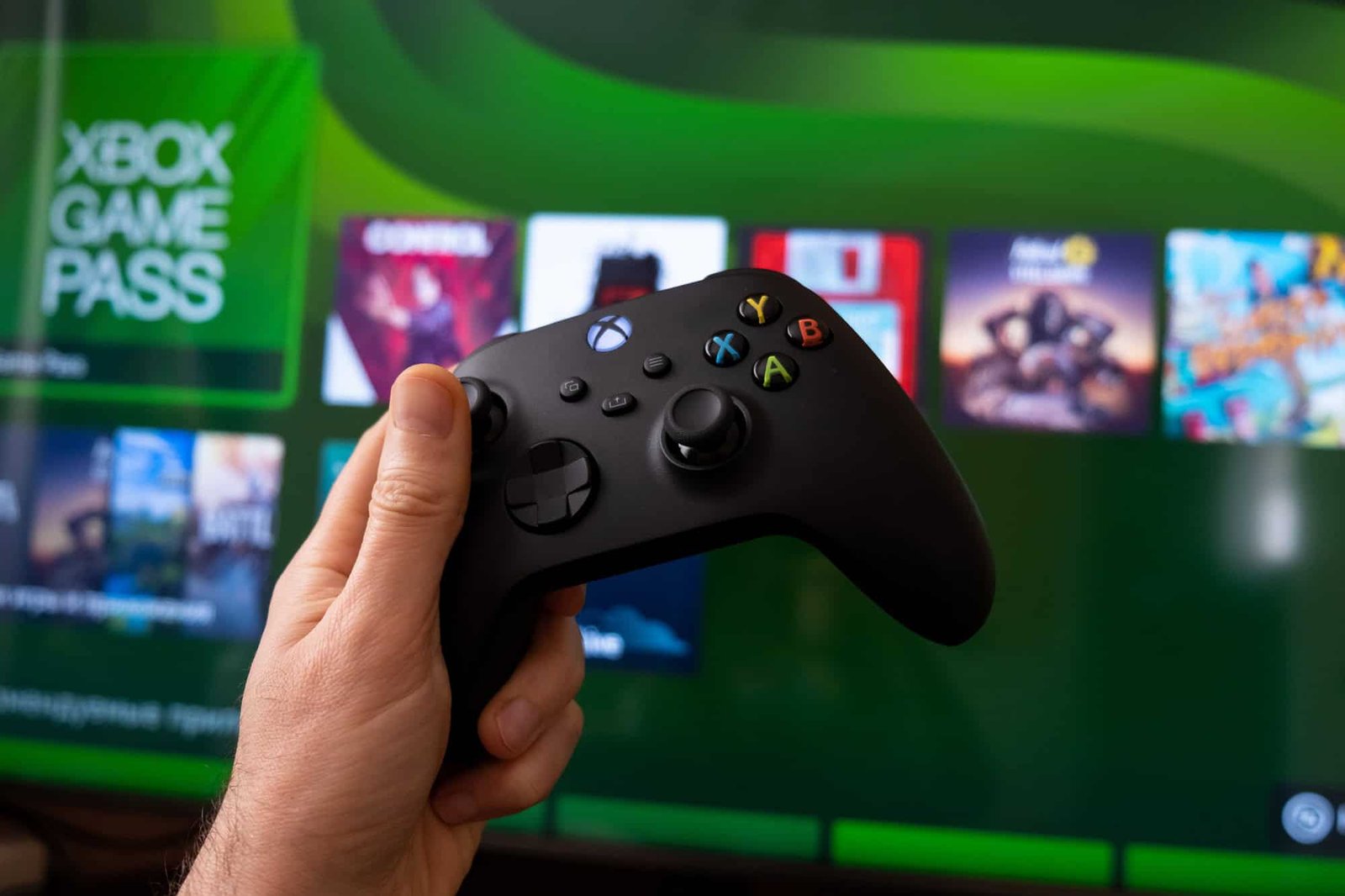
Which smart TVs support Xbox Cloud Gaming
Support for Xbox Cloud Gaming is typically found on newer smart TV models that offer modern app stores and updated operating systems. Several recent TVs from major brands provide native support for the Xbox app or Microsoft’s cloud gaming service in their app catalog.
Not all smart TVs are compatible. To confirm whether a specific set works, open the TV’s app store and search for the Xbox app or Microsoft cloud gaming service; availability in the store indicates compatibility.
Requirements to play without a console
To play Xbox games on a smart TV without a console you need:
- A compatible smart TV with the Xbox app available in its app store.
- An Xbox Game Pass Ultimate subscription linked to your Microsoft account.
- A stable internet connection—preferably a 5 GHz Wi‑Fi network or a wired Ethernet connection.
- A compatible controller paired to the TV, commonly via Bluetooth.
The performance of streamed games depends on connection stability. Unstable networks can cause input lag or reduced image quality, so a reliable connection is important for a smoother experience.
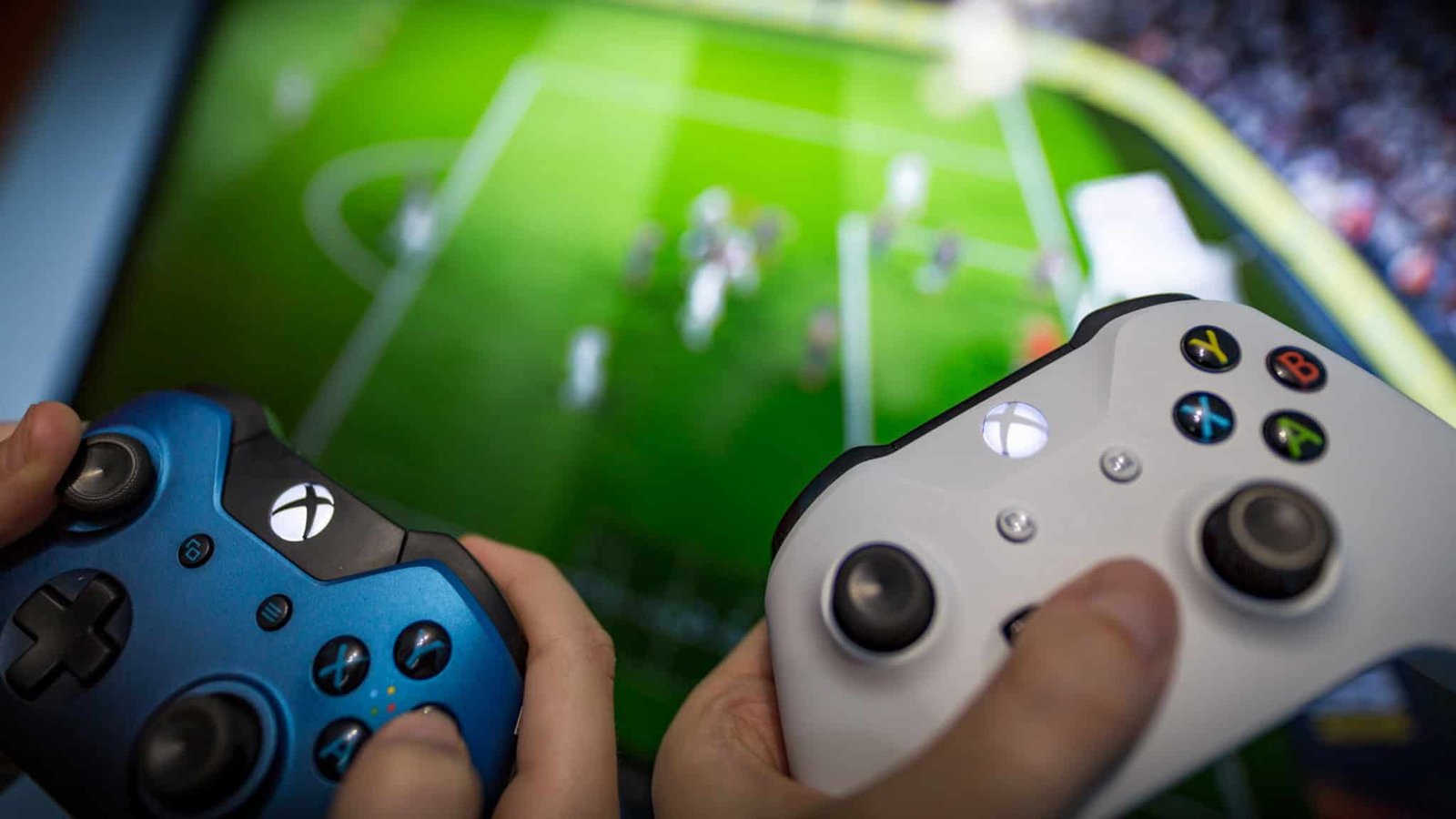
Step-by-step setup on your smart TV
Estimated time: 5 minutes
- Check TV compatibility. Open the smart TV’s app store and search for the Xbox app. If it appears for download, the TV supports Xbox Cloud Gaming.
- Install the Xbox app and sign in. Launch the app and log in with your Microsoft account that has an active Xbox Game Pass Ultimate subscription.
- Pair a compatible controller. Most smart TVs support Bluetooth controller pairing. Put the controller in pairing mode and connect it from the TV’s settings.
- Select and start a game. Choose a title from the Xbox Cloud Gaming catalog in the app; the game will stream to the TV without needing to download it.
- Prefer a stable network. Use 5 GHz Wi‑Fi or an Ethernet cable to reduce input lag and improve streaming quality.
Who benefits from playing on a smart TV
Smart TV cloud gaming is well suited for users who already own a compatible TV and want a casual or mid‑level gaming experience without buying a console. It lowers the entry cost for trying Xbox titles and removes the need for downloads and additional hardware.
Anyone with a Microsoft account and an active Xbox Game Pass Ultimate subscription can access the service, subject to the platform’s standard account and content policies.