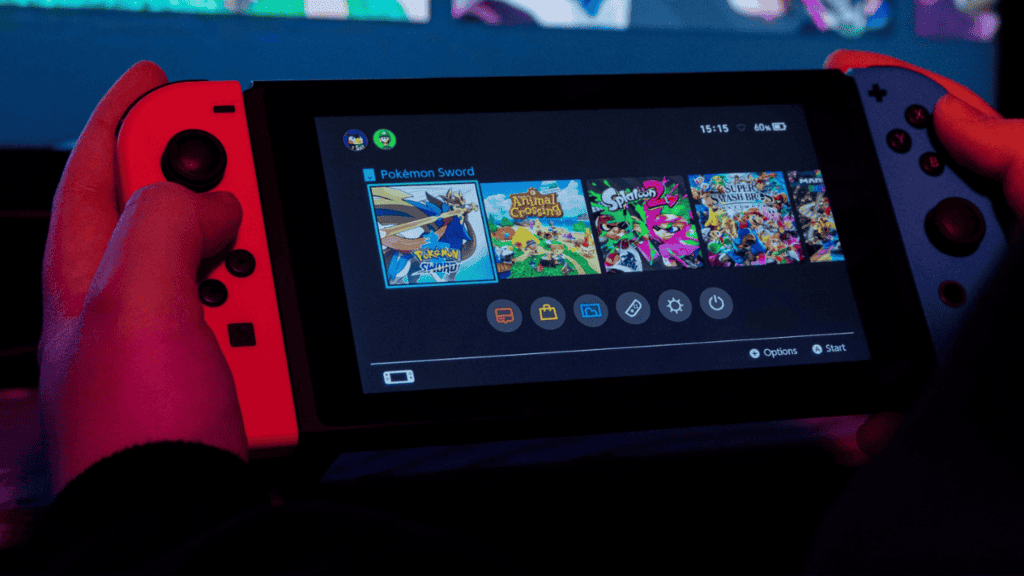
The Nintendo Switch can output gameplay to a computer screen, but it requires more than just an HDMI cable. To display Switch video and audio on a desktop or laptop, you need a video capture card that connects the console’s dock to your PC.
Why a direct HDMI cable won’t work
Most computer HDMI ports are outputs designed to send a display signal from the PC to a monitor, not to receive one. Televisions typically accept HDMI input, but connecting the Switch’s HDMI cable straight to a computer will not display the console’s image.
What you need: a capture card
A capture card receives video and audio from one device and forwards them to another. For this setup you need a capture card with an HDMI input (to accept the signal from the Switch dock) and a USB plug (to connect to your computer).
Many capture cards are compact and resemble a USB stick. They are available from major retailers and online marketplaces.

Step-by-step setup
- Turn on your computer;
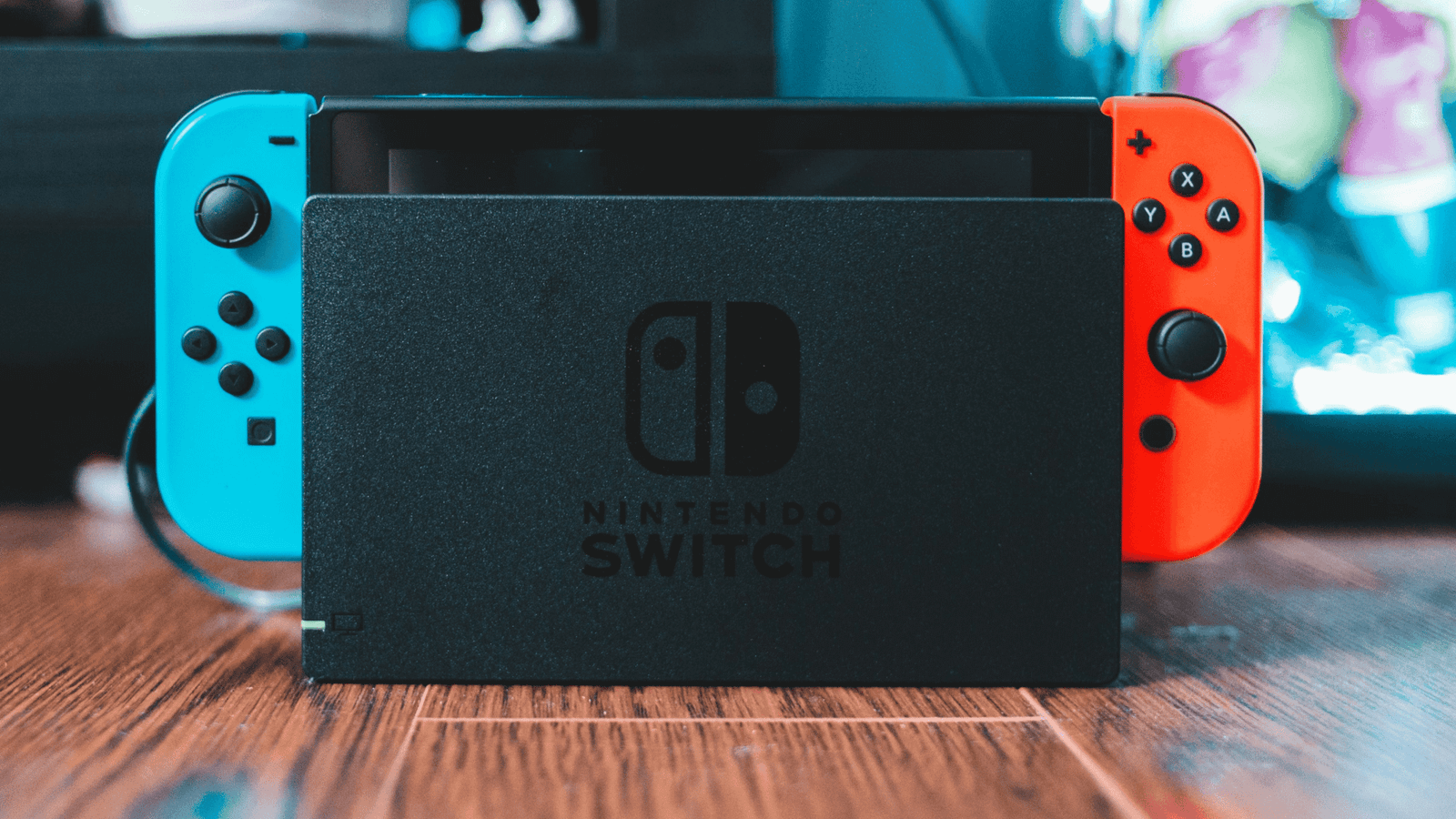
- Place the Switch dock near the PC and connect the dock’s power and HDMI cables;
- Insert the Nintendo Switch into the dock;
- Plug the dock’s HDMI cable into the HDMI input on the capture card;
- Connect the capture card’s USB plug to a USB port on your computer;
- Download and open OBS Studio;
- In OBS Studio, add a source: choose “Video Capture Device” and enable it.
Additional note
There is a short video that demonstrates this same procedure step by step. See the media below for a quick visual guide.