
The Nintendo Switch includes several built-in settings and button shortcuts that can improve usability, battery life, and accessibility, but not all players know how to access them. Below are six features every Switch owner should be familiar with and instructions on how to enable or use each one.
Use the quick controls shortcut
Pressing the Home button returns you to the console’s main screen, but holding that button opens a quick controls panel on the right side of the display. From this panel you can raise or lower volume, adjust screen brightness, toggle automatic brightness, enable airplane mode, put the console into sleep (suspend) mode, check the time, and view battery status.
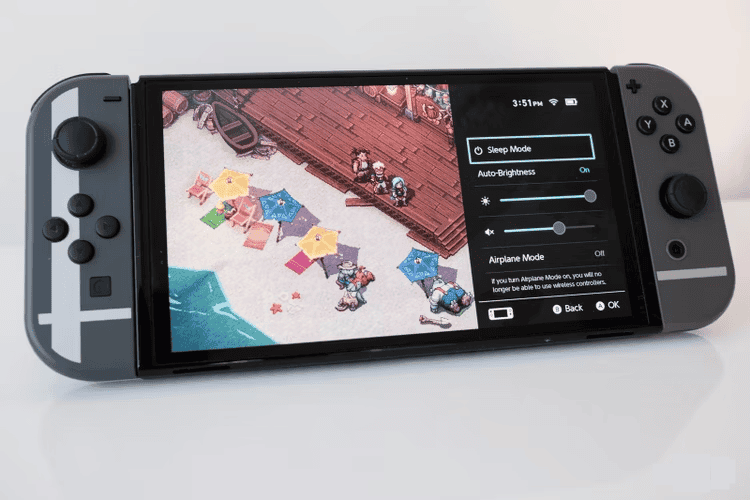
If you press and hold ZL + ZR while the quick controls panel is open, the battery percentage will appear. This shortcut works at any time, including during gameplay — useful, for example, to increase screen brightness during a dark scene.
Enable dark theme
The Switch supports a dark theme to reduce eye strain and lower perceived screen glare. To enable it, open System Settings > Themes > and choose “Black.” The change applies to the system interface.
Dark theme can improve comfort for players who prefer a darker interface or who play in low-light environments.
Adjust color settings on the Switch OLED
The Switch OLED model offers a more vivid screen and also allows users to change the console’s color profile if colors seem too saturated. To modify these settings go to System Settings > Console > Console screen colors > and select the desired mode.

Connect wireless headphones
The Switch supports Bluetooth audio. To pair wireless headphones, navigate to System Settings > Bluetooth Audio > Pair Device, then put your headset into pairing mode and confirm its name when it appears. This procedure connects most Bluetooth headphones for in-game and system audio.
Customize suspend (sleep) behavior
The console’s suspend mode (sleep) can be configured to save battery or remain more connected. By default the Switch enters sleep after 10 minutes of inactivity, but you can change that and other related behaviors at System Settings > Sleep Mode.
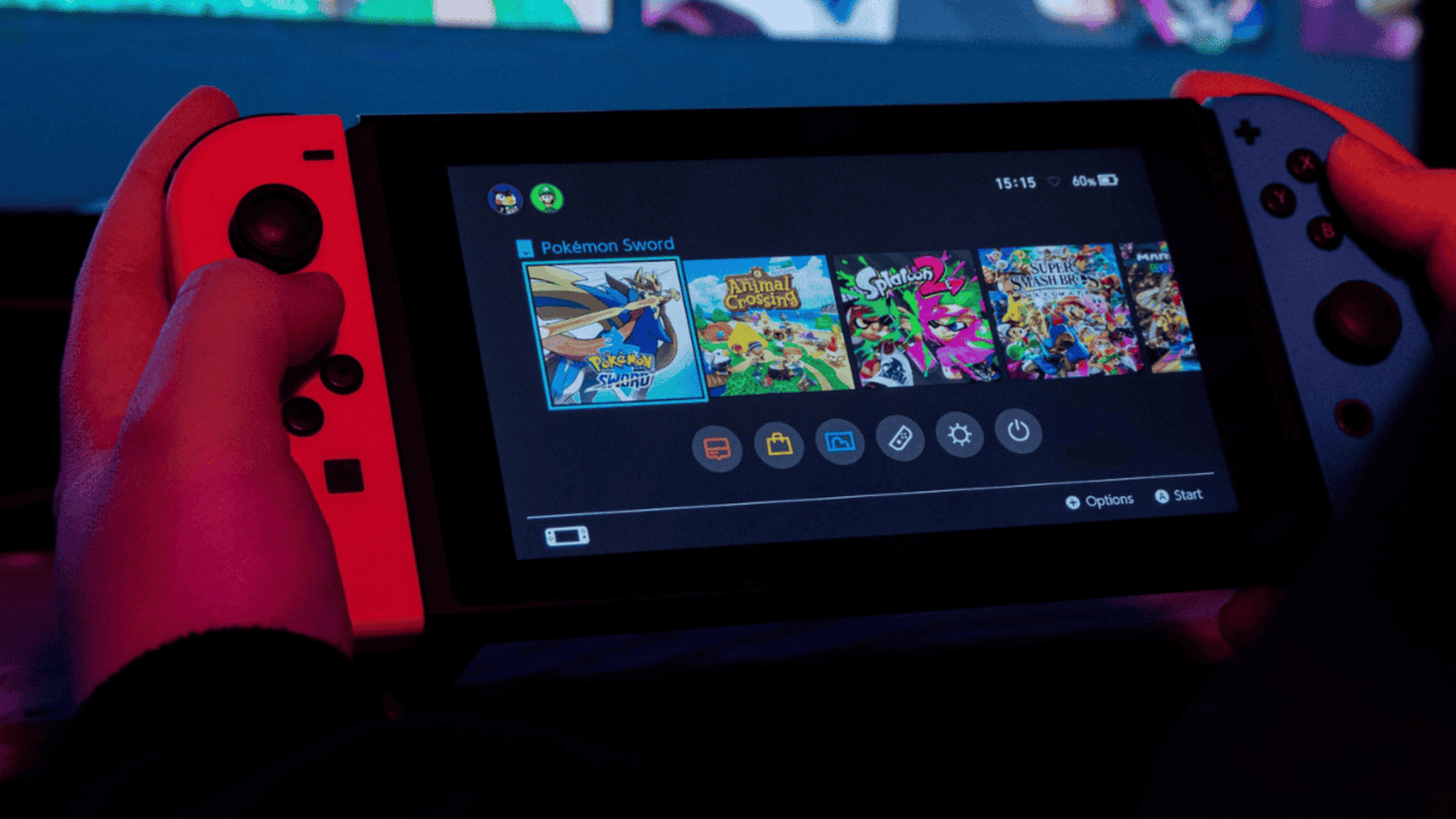
Within Sleep Mode settings you can set how long the console waits before sleeping when in handheld mode or docked, and choose whether the internet connection stays active while the console sleeps.
Turn on and use screen zoom
For users with visual difficulties, the Switch offers a screen zoom feature. Enable it at System Settings > Console > Zoom. Once activated, press the Home button twice to toggle zoom on and off; while zoomed, press X to increase zoom and Y to decrease it.