The Nintendo Switch may fail to connect to Wi‑Fi for several common reasons; follow targeted checks — from verifying your home network and Nintendo server status to adjusting console settings and restarting the device — to restore online play.
Confirm your home network is working
First, make sure your internet service is actually available. Use other devices, such as a smartphone or PC, to check whether they connect normally. Then inspect your modem and router: verify that the indicator lights are on and behaving as expected.
If you see anomalies, unplug the modem and router from power, wait about one minute, then reconnect them. Also check that all cables are properly seated.
Check Nintendo server status
Although uncommon, outages on Nintendo’s servers can prevent your Switch from connecting. If the problem stems from a server interruption, there is nothing you can do locally besides waiting for the service to be restored.
To check whether Nintendo’s services are affected, consult the official Nintendo status page (click here) or a third‑party outage tracker like Is The Service Down. Both sites will report known interruptions.
Inspect Switch network settings and signal
Network settings on the Switch can block connectivity if configured incorrectly. Start by confirming you are within a reasonable range of your Wi‑Fi router; distance and obstacles can degrade reception, so move closer if necessary.
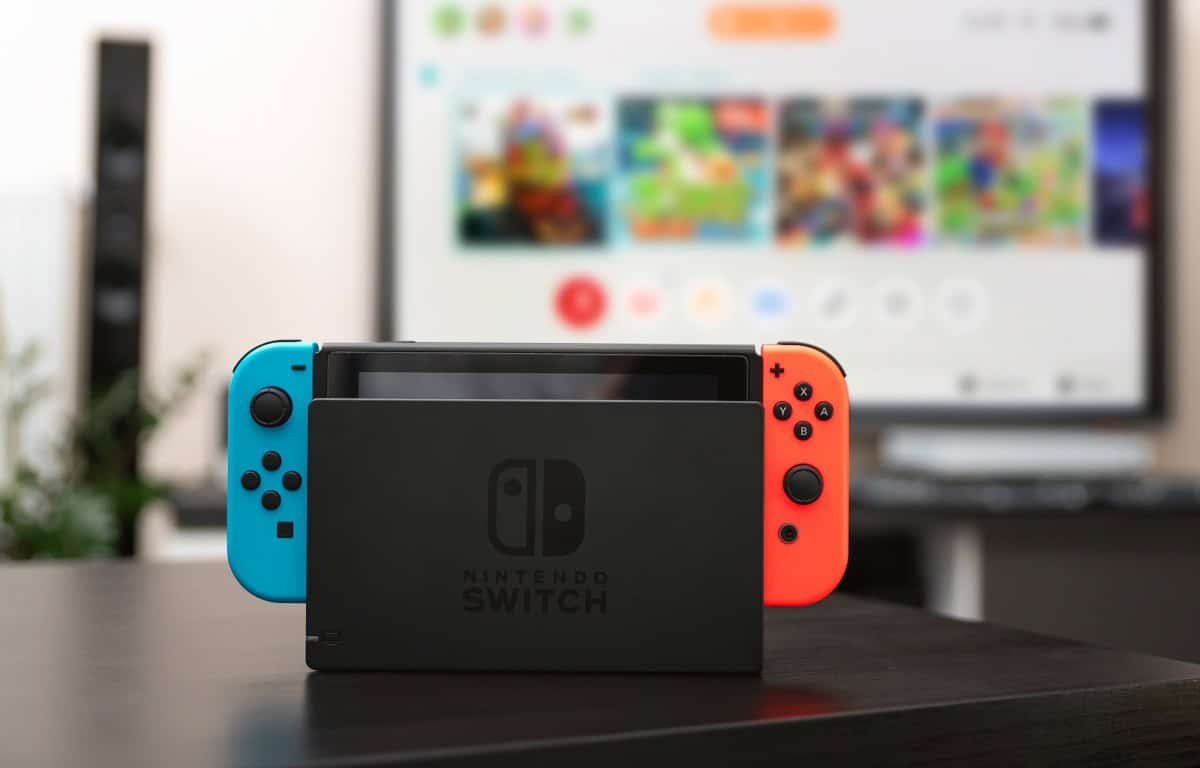
Next, check whether Airplane Mode is enabled on the console. If it is, Wi‑Fi will be disabled. Navigate to System Settings > Airplane Mode and turn it off.
Also confirm the Switch is attempting to join the correct network. Go to System Settings > Internet > Internet Settings and verify the console is connected to your network rather than a neighbor’s.
Finally, make sure the console’s system software is up to date: System Settings > System > System Update.
Restart the console and test the connection
If the previous steps don’t resolve the issue, perform a restart: hold the power button for three seconds, choose Power Options, then select Restart. After the console reboots, go to System Settings > Internet > Test Connection.
If the connection test fails, record the error code shown on screen and contact Nintendo customer support for further assistance.