
Auto HDR automatically enhances the visual quality of games and multimedia by applying high dynamic range processing to content that was not originally created with HDR, producing richer colors, deeper contrast and more visible detail.
What Auto HDR does
HDR stands for High Dynamic Range, a technology that expands the range of colors and contrast between bright and dark areas in an image. Traditionally, HDR required content and display settings tuned specifically for the format.
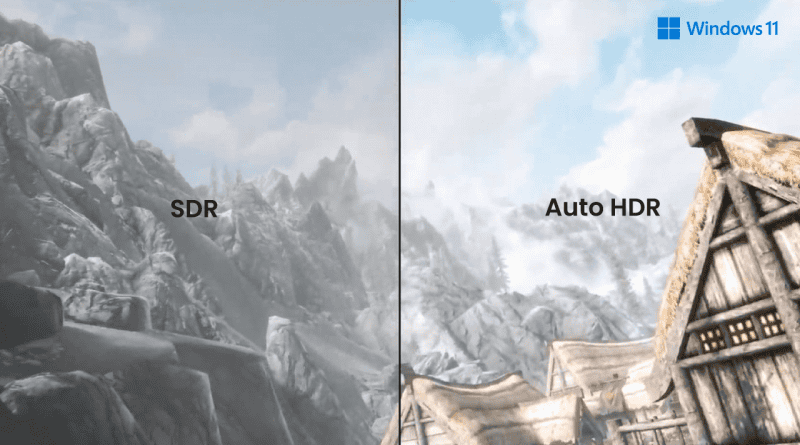
Auto HDR simplifies that process by letting the system apply HDR-like adjustments automatically to non-HDR content, so older games, videos and other media can appear more vivid and detailed without manual configuration or remastering.
Why it matters for games and video
On modern consoles and PCs, Auto HDR can bring legacy titles closer to the visual standards of newer, HDR-native releases. By analyzing each frame, the feature optimizes brightness, color saturation and contrast to reveal more detail in highlights and shadows.
For video and films not originally recorded in HDR, Auto HDR can similarly increase perceived color depth and cinematic presence, improving vibrancy and clarity when played on compatible displays.

Where Auto HDR is commonly used
The feature is particularly widespread on current-generation consoles and recent PC operating systems. Console implementations apply Auto HDR to many older games automatically, while PCs with compatible graphics cards can use the feature system-wide for games and video playback.
How to enable Auto HDR
On Xbox Series X/S
- From the console home, go to “Settings.”
- Select “General” and then “TV & display options.”
- Under “Video modes,” enable “Auto HDR.”
Once enabled, the console will apply Auto HDR to supported games automatically.
On Windows 10/11
- Open Windows Settings.
- Go to “System” and then “Display.”
- Scroll to “HDR settings” and turn on “Use HDR.”
- If available, enable the “Auto HDR” option as well.
With these settings active and a compatible GPU from vendors such as Nvidia or AMD, Windows will adjust display output to take advantage of HDR where possible.
On HDR-capable TVs and monitors
If your TV or monitor supports HDR, Auto HDR may activate automatically when compatible content is detected. Some displays require specific picture modes—such as “Game Mode” or a designated “HDR” picture preset—to be enabled for optimal results.
What Auto HDR does not do
Auto HDR enhances non-HDR content through processing, but it does not replace a native HDR remaster. The outcome depends on the device’s implementation and the display’s capabilities; results can vary between platforms and titles.