Xbox Cloud Gaming allows Game Pass Ultimate subscribers to stream games from Microsoft’s servers to a wide range of devices. The subscription costs R$ 50 per month and requires only an internet connection on a computer, smartphone, tablet or console to run even graphically demanding titles.
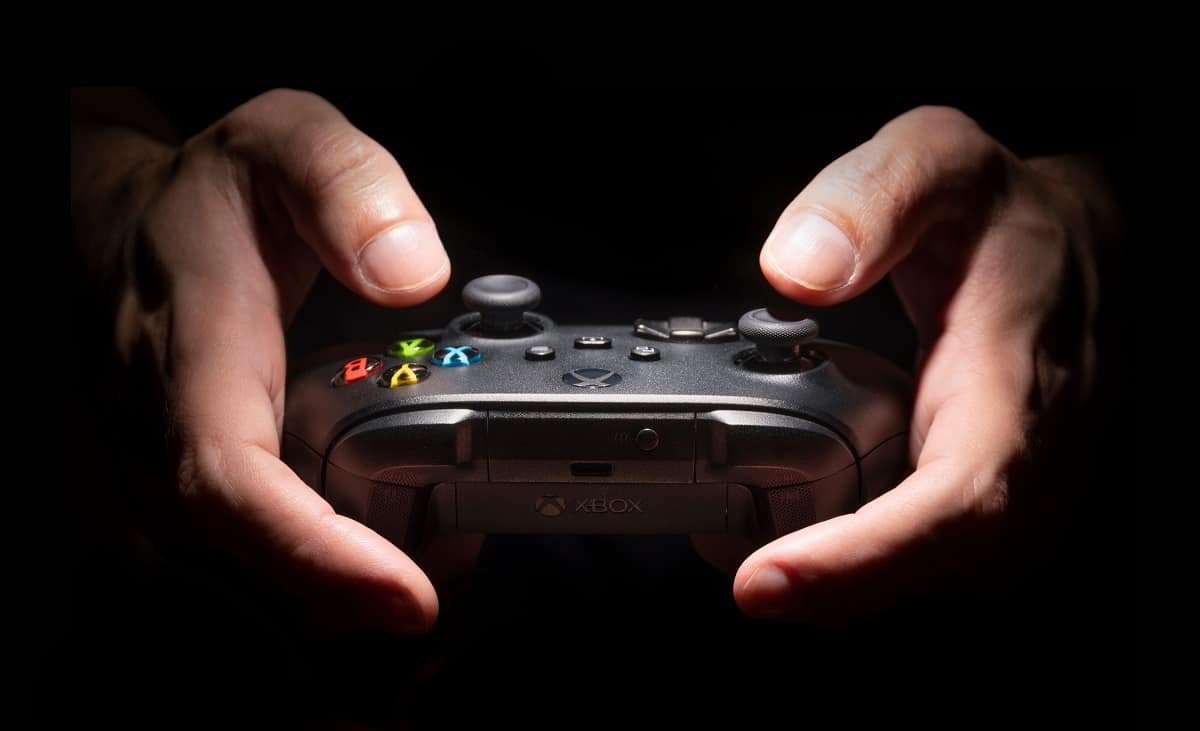
Play cloud-streamed games on your Xbox console
You can start streamed games directly from an Xbox console by locating titles marked with the cloud icon. Follow these steps on your controller and console:
- Press the Xbox button on the controller;
- Go to “My apps & games”;
- Select “See all”;
- Open “Full library”;
- Choose “Xbox Game Pass”;
- Pick a game that shows the cloud icon to stream it from the cloud.
Access Xbox Cloud Gaming on a PC
Xbox Cloud Gaming can be used on a PC via a web browser, but you will need an official Xbox controller or a compatible accessory for best results.
Estimated time: 4 minutes
- Open the Xbox Cloud Gaming site in your browser — enter https://www.xbox.com/pt-br/play in the address bar.
- Sign in to your account — click “Sign in” in the top-right corner and use the Microsoft account that has the Xbox Game Pass Ultimate subscription.
- Choose a game — select a title and press “Play.”
- Make sure your controller is connected — tests showed that sometimes the platform displays “Controller not detected” even when compatible accessories are connected. Press any button on the controller to continue, or select “Continue anyway.” It’s recommended to test the controller before joining a queue, which can last about 20 minutes.
- Wait your turn in the queue — a waiting queue is common; once your session starts, the game will launch automatically.
Use Xbox Cloud Gaming on mobile devices
Accessing Xbox Cloud Gaming from a smartphone follows a similar flow to the PC. Some games support on-screen touch controls, while others require a connected accessory via Bluetooth.
Before starting a streamed session on mobile, check whether the game shows only a controller icon or also indicates touch control support.
- Open a browser such as Chrome or Edge and visit https://www.xbox.com/pt-br/play;
- Sign in with your Microsoft account;
- Select the title you want to play;
- Tap “Play” to begin streaming;
- If you see “Controller not detected,” press any button on the controller to proceed;
- Wait for the game to load, then start playing.
Which controllers work with Xbox Cloud Gaming?
Microsoft publishes lists of accessories that are compatible with Xbox Cloud Gaming, grouped into three categories:
- “Xbox Official”: accessories manufactured by Microsoft for Xbox;
- “Designed for Xbox”: accessories produced by Xbox partner brands;
- “Verified”: third-party accessories tested and verified by the Xbox team.
Some controller models work only with specific devices. Users should check Microsoft’s website to confirm compatibility with their phone or computer.
The published lists do not imply these are the only controllers that may work; other models can also be compatible but should be tested to ensure they connect properly to the service.