The Microsoft Store centralizes purchases for Xbox and Windows 10 PC games: buy a title once and you can play it on both platforms. This guide explains how to buy, install and find your Xbox games on a Windows 10 PC using the Microsoft Store.
Open the Microsoft Store app
Click the Start menu, type Microsoft Store and press Enter to open the app.
Browse and select a game
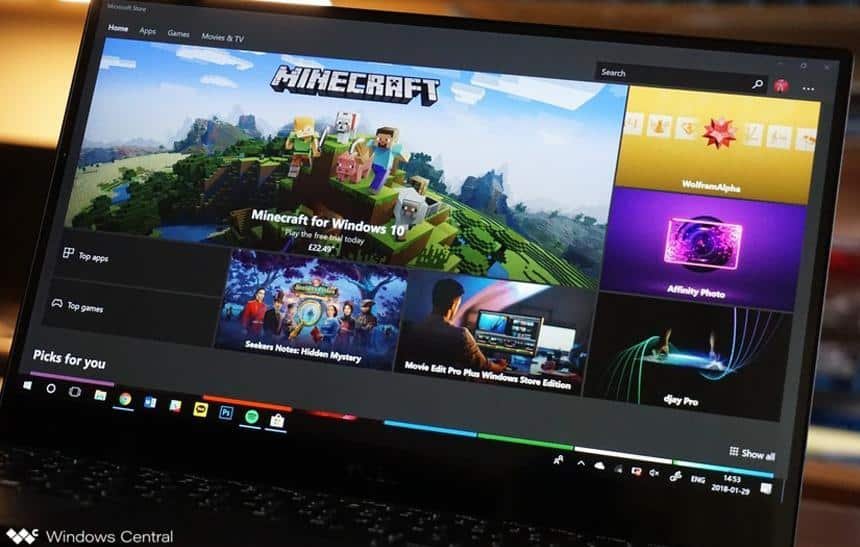
On launch, the Microsoft Store opens to the Home screen. To focus on games, click the Games menu at the top. You will see curated lists such as featured titles, bestsellers, popular games and free-to-play options.
Use these lists to explore options or type the game’s name in the search field at the top right to find a specific title.
Purchase the game
When you find the game you want, open its store page and click the Buy button. Follow the on-screen payment steps to complete the purchase.
Install and play after purchase
After the transaction completes, the store page shows an option to start installation. A progress bar will indicate the download size and estimated time remaining.
When installation finishes, the Microsoft Store provides a Play button so you can open the game immediately.
Find games you’ve already purchased
To view previously purchased titles later, open the Microsoft Store and click the three dots in the top-right corner to open the menu. Select My Library to see a full list of your games, whether installed or not.
From My Library you can queue uninstalled games for download. If a title is already installed, click it to launch and play.
Alternative way to open installed games
You can also open installed games from the Start menu. Browse installed apps or type the game’s name into Start and click the result to launch it.
With these steps, you can buy, install and access your Xbox games on a Windows 10 PC through the Microsoft Store.