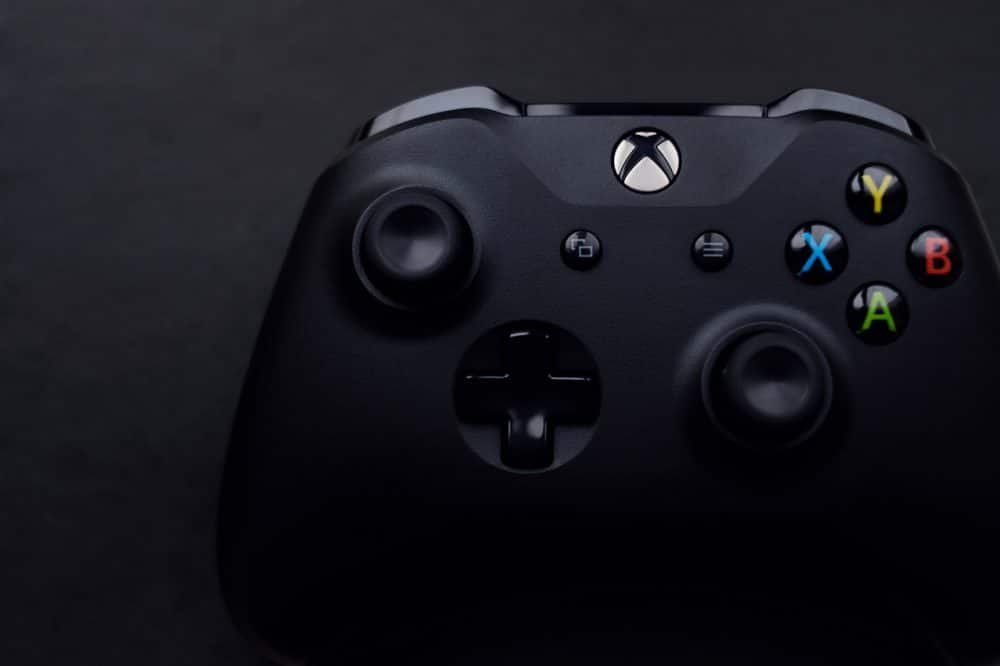
When your Xbox One controller flashes a green light and stops responding, it often signals a connection or power issue. The problem can stem from drained batteries, pairing errors, firmware needs or simple range limitations. Here are five steps to diagnose and fix a blinking green light on an Xbox One controller.
1. Check or reseat the controller batteries
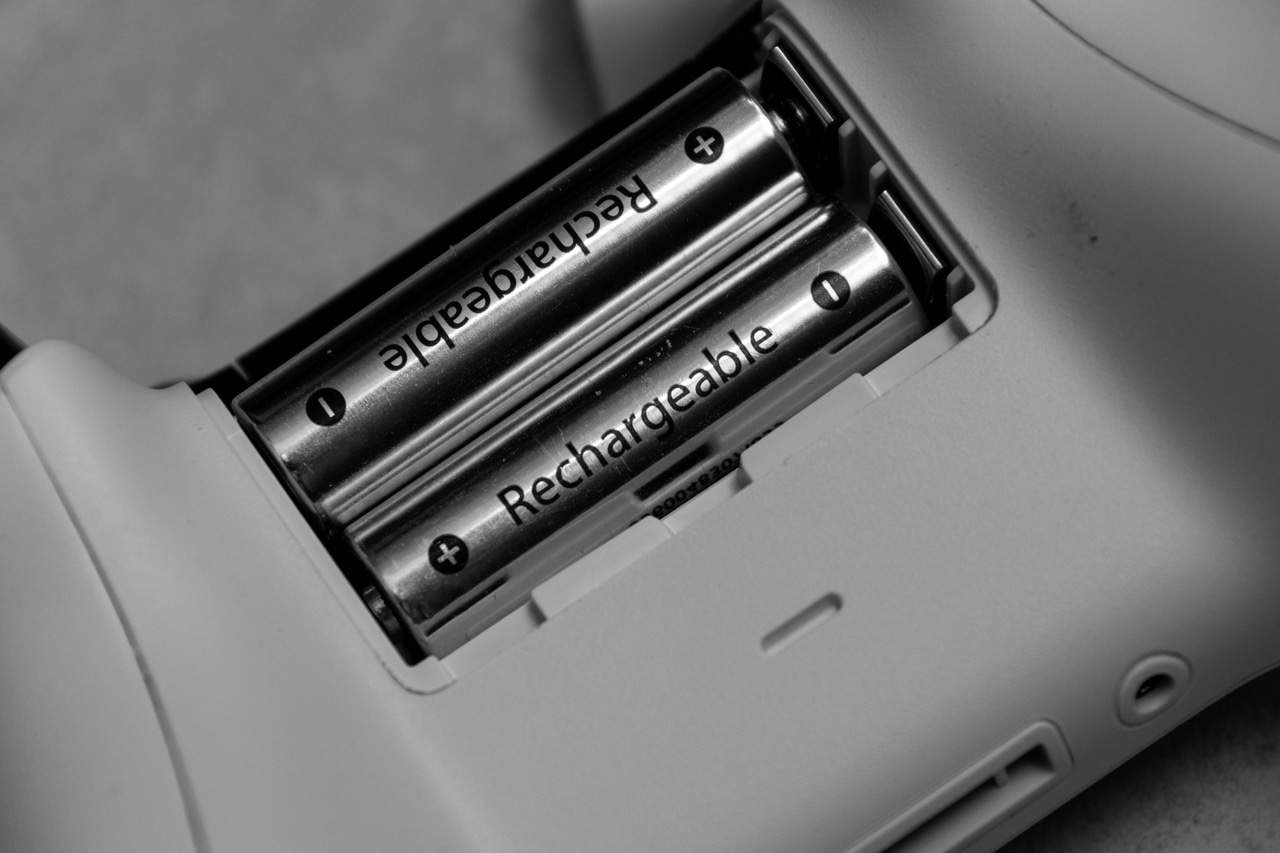
Start with the simplest possibility: weak or improperly seated batteries. This applies whether your controller uses AA batteries or a rechargeable battery pack.
If you believe the batteries are charged, remove them, wait about 15 seconds, and reinsert them. A fresh set of batteries or a fully charged pack may immediately stop the blinking light and restore functionality.
2. Confirm the controller is paired to the console and within range
The controller may be connected to another device or simply out of range. If the last connection was to the Xbox, press the Xbox logo button twice to attempt reconnection.
Microsoft states the wireless range is roughly five to eight meters; walls and obstacles can reduce that coverage. Move closer to the console and remove obstructions to rule out distance as the cause.
3. Re-pair the controller to the Xbox One
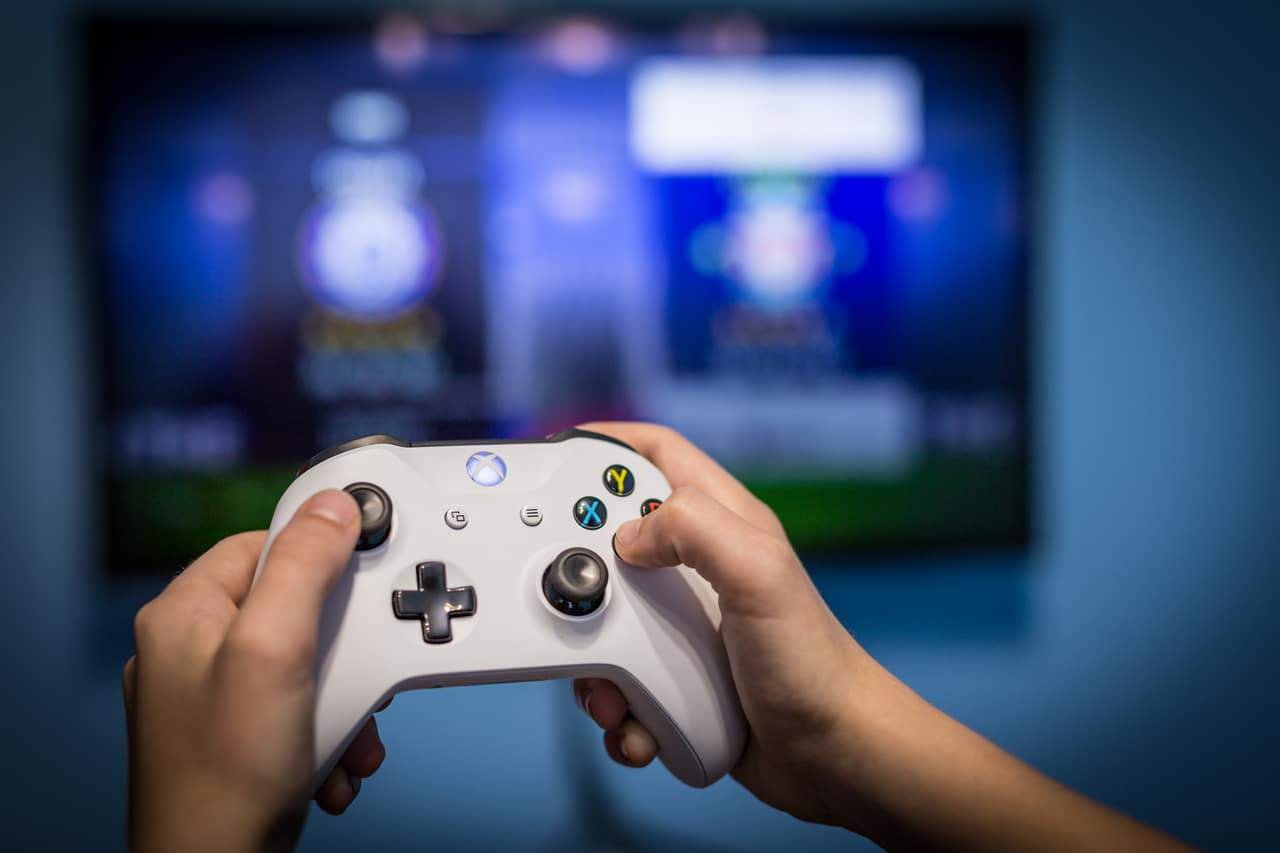
If reconnecting doesn’t work, perform a fresh pairing. Press the console’s pairing button, then press and hold the controller’s pairing button for 20 seconds. If the controller’s blinking speeds up and then changes to a steady green, the pairing was successful.
4. Restart the console and update the controller firmware
Power-cycle the Xbox One by holding the power button for 10 seconds to fully shut it down, then restart. A reboot can clear temporary software glitches that affect controller connections.
Also check the controller’s firmware version. Updates can be applied wirelessly or via a micro USB cable connected to the console; keeping firmware current can resolve compatibility and connectivity issues.
5. Use a micro USB cable to connect the controller directly
If wireless fixes fail, plug the controller into the Xbox One with a micro USB cable. A wired connection typically restores input immediately, though it limits the controller’s wireless freedom.
Source: Business Insider