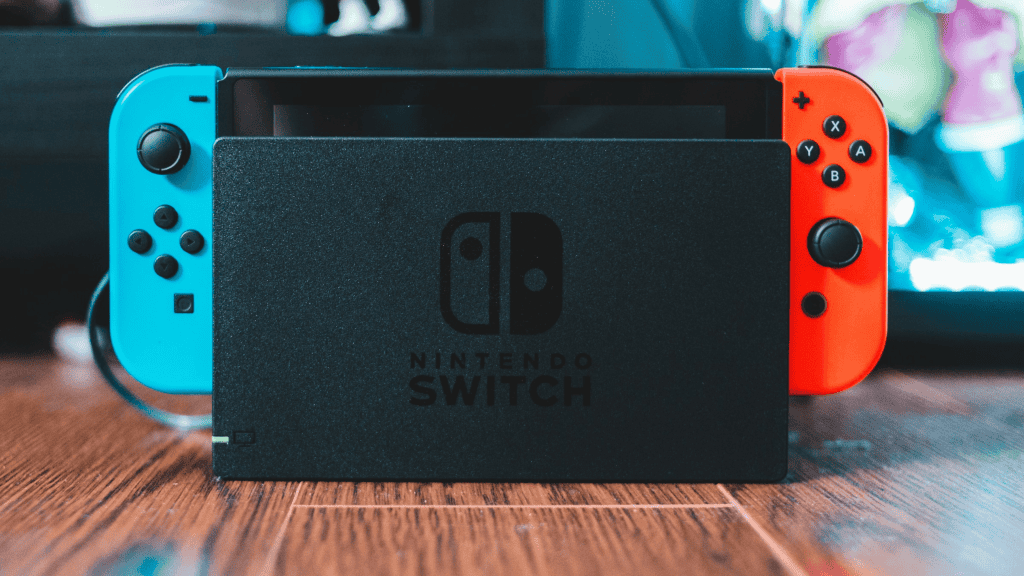
The Nintendo Switch remains popular seven years after its launch. Below are practical tips to help you use its features fully — from parental controls to profile customization and storage strategies.
Use parental controls to manage what children can access
The Switch includes a built-in parental control system that can restrict which games a user can download and play. Parents often use it to block titles with violent content or inappropriate language for younger players.
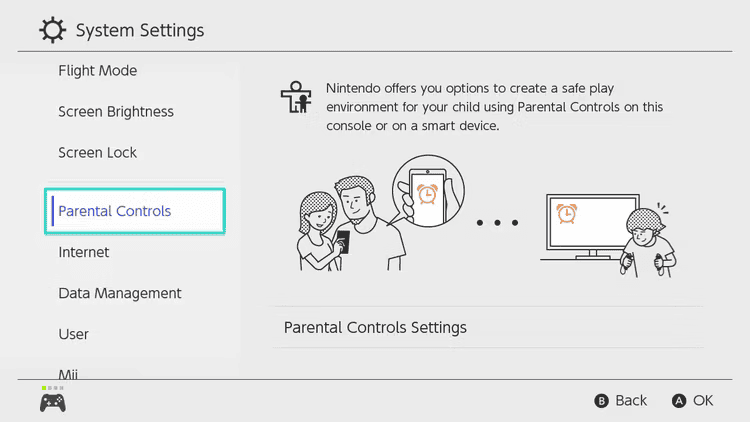
You can enable parental controls directly on the console or through a separate mobile app. The app not only applies content restrictions but also shows how often the child uses the console and lets you set daily playtime limits for specific days.
Customize and manage user profiles
When you first set up a Switch, the system asks you to create a profile with a name and icon, but those choices are not permanent. You can edit profile details later by accessing your profile area and selecting the option to change information.
It is also possible to create additional user profiles and link them to different Nintendo accounts. Connecting a profile to an account registered in another country can grant access to that country’s eShop catalog.
Buy and download games from other countries’ eShops
If you want to explore games outside your region, you can access another country’s eShop by creating a new Nintendo account on Nintendo’s official website and selecting the desired country as the account’s region. This works for both free and paid games.
After creating the account, add a new user on your console and link it to that foreign account. Then open the eShop while signed in with the new user to browse and purchase items available in that country’s store.
Add friends to play online
The Switch allows you to add friends to your profile so you can invite them to play when they’re online. You can send friend requests to people you’ve played with online, paste another user’s friend code to request friendship, or find nearby players with a Switch and send a request directly.
Expand storage with a microSD card
One common limitation of the Switch is its internal storage. To avoid running out of space for downloads, add a microSD card to store games and free up internal memory.
Prefer physical copies for large games
When storage is limited or your microSD card capacity is small, buying physical game cartridges can save significant space. Large titles can occupy substantial digital storage, so opting for a physical copy avoids having to delete other downloaded games.
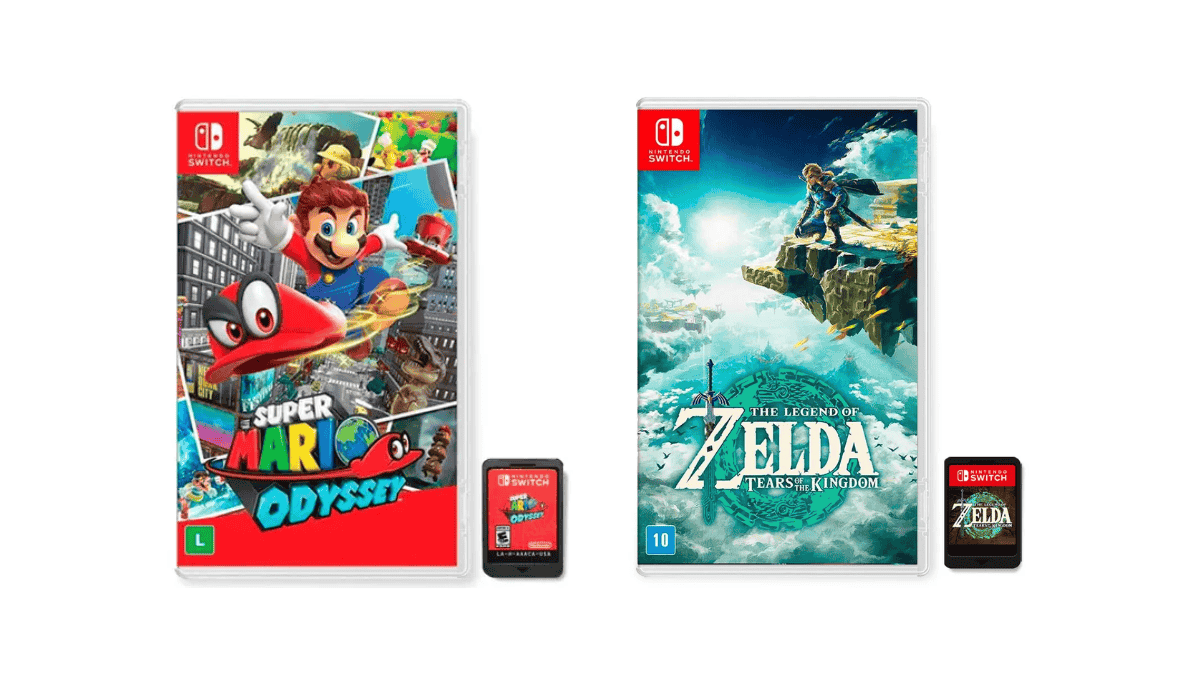
For example, very large games can consume a notable portion of available memory, making physical editions a convenient alternative when you want to keep multiple titles installed.