
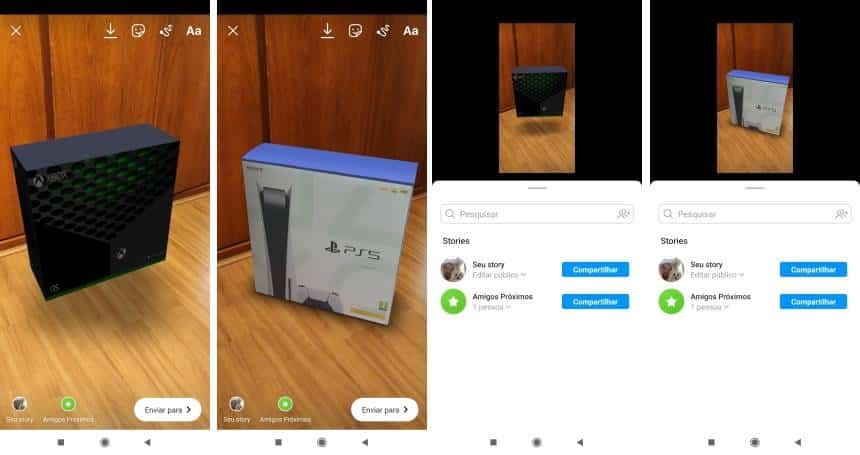
The Instagram effects gallery includes user-made filters that let you overlay the PlayStation 5 or Xbox Series X “box” onto photos or videos for Stories. The feature works entirely within Instagram and does not require any unofficial apps.
What you need before starting
Make sure your Instagram app is updated to the latest version available on Google Play or the App Store. The effect uses the app’s camera and filters, so no external image editors or downloads are necessary.
Step-by-step: adding the PS5 or Xbox box to a Story
Follow these steps inside Instagram to add a virtual console box to your Story:
1. Update Instagram via the Google Play or the App Store if needed.
2. Open Instagram and tap the new Story/post icon to open the camera.
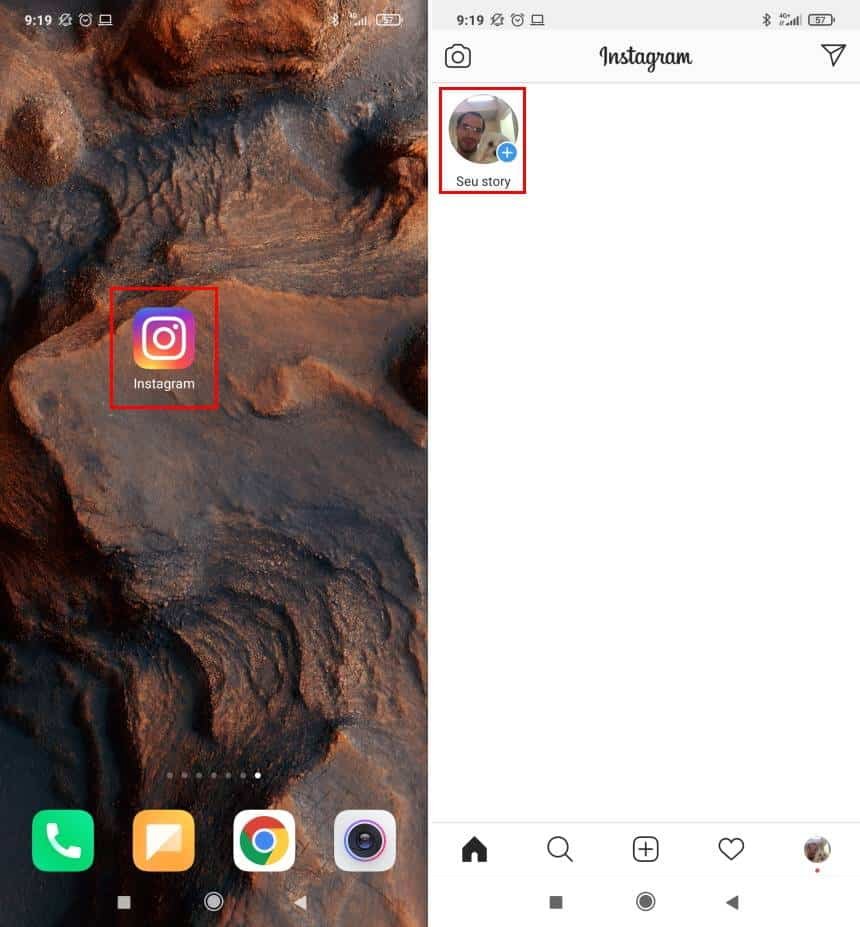
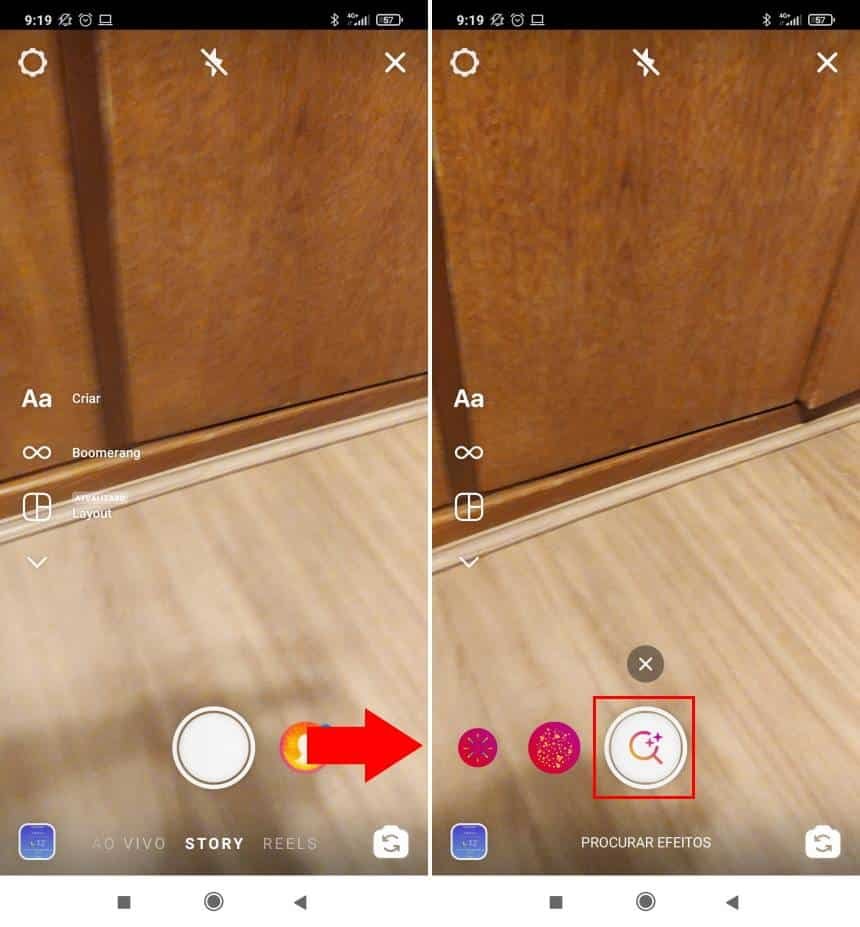
3. In the filters area, select the option to “Browse Effects.”
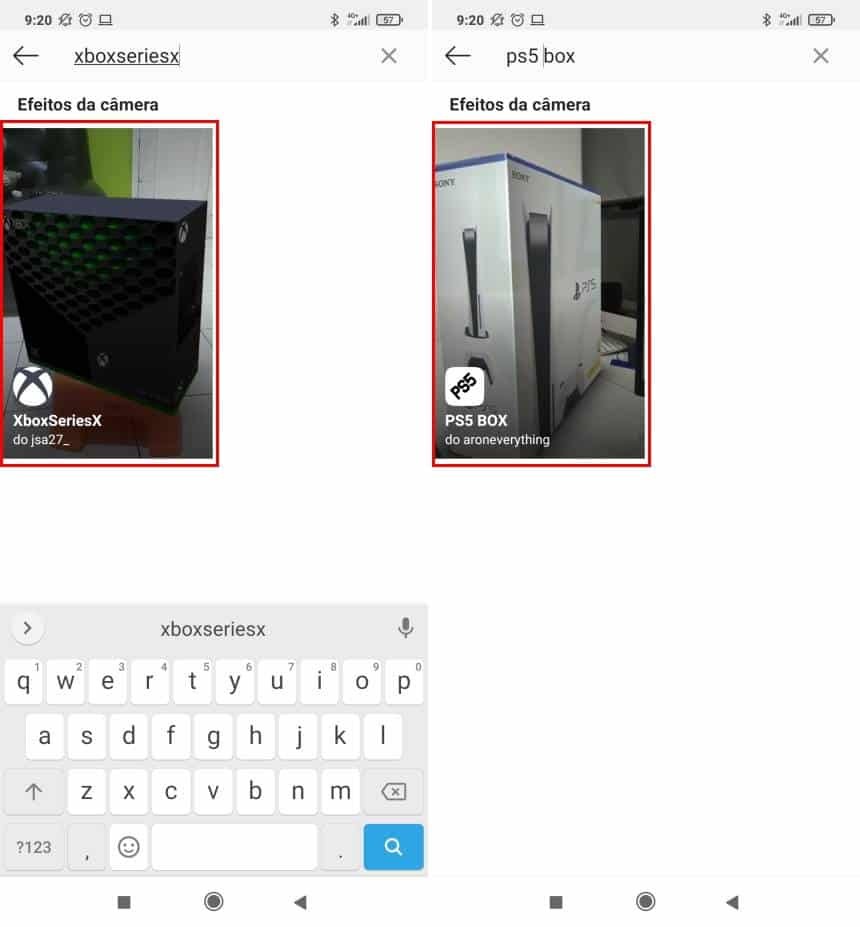
4. In the search screen, look for “PS5 Box” or “XboxSeriesX” (enter XboxSeriesX without spaces) to find the relevant effects.
5. After selecting an effect, tap “Try It,” then position the virtual box on a flat surface and capture a photo or record a video.
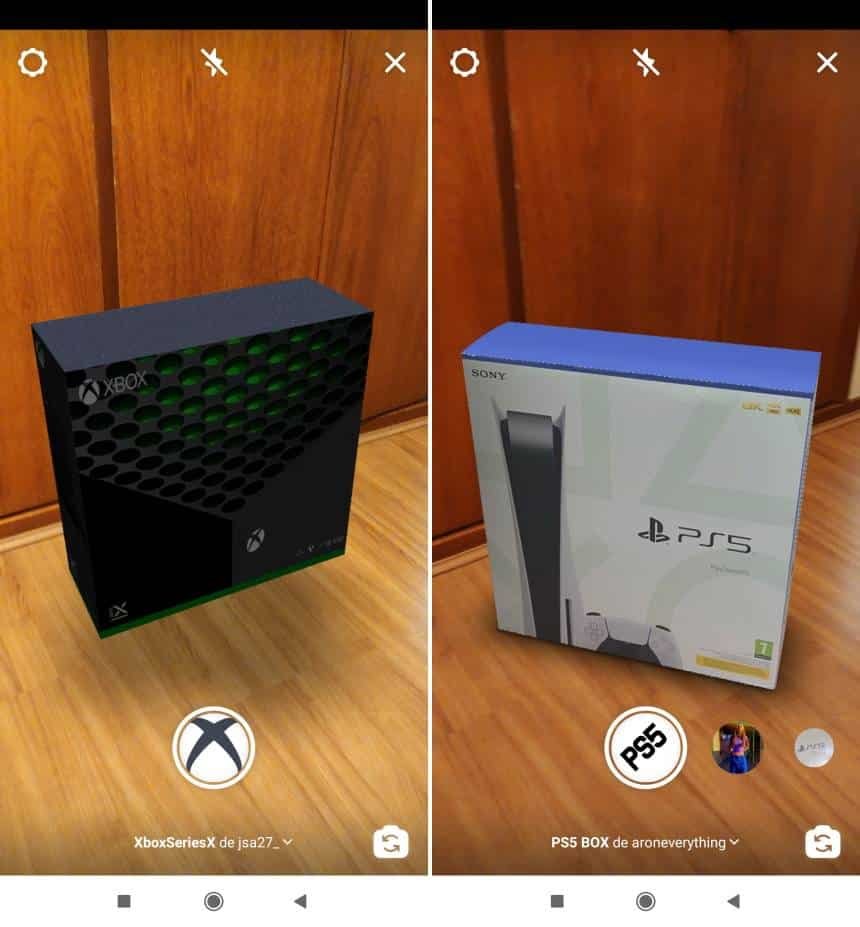
6. Complete any additional editing and publish the Story to your profile.
Notes on usage
These filters are created by Instagram users and applied through the app’s camera. The instructions above rely solely on built‑in Instagram features and the effects available in its gallery.